 Fabric 1.21.442 mods, shared saves
macOS
Your computerOpen the disk image and drag MIM to Applications.
Version 0.2.1 is out
One home for every version, mod loader, world, and resource pack you play with. MIM works alongside the official launcher.
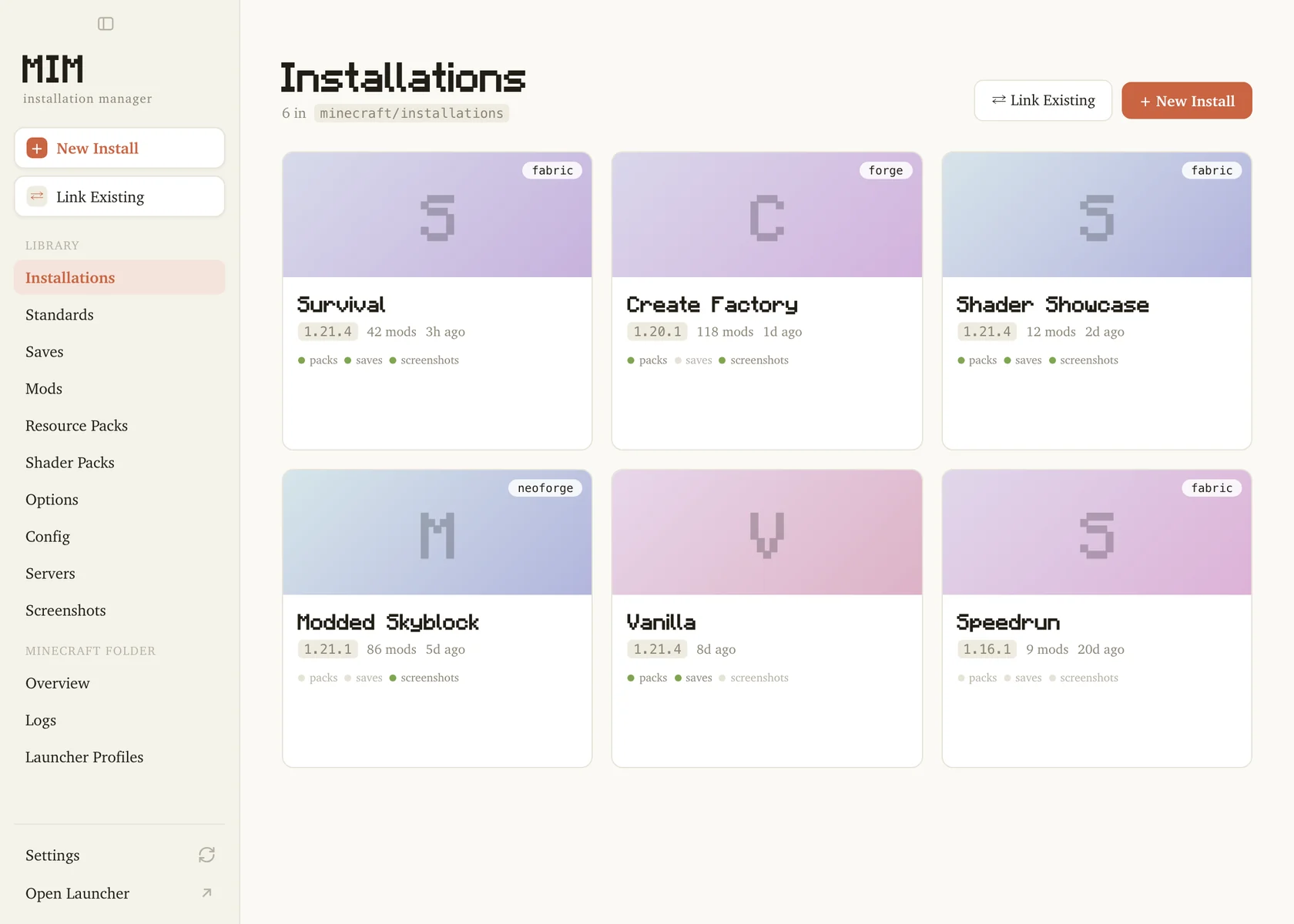
An installation is one way you play Minecraft: a game version, a mod loader, and its own folder of mods, worlds, and settings.
Most players end up with several. One for survival, one for a modpack, one for shaders. Each keeps its own copies, so your worlds get scattered and your keybinds never match.
MIM manages them all from one window and lets them share the files that should stay the same.
Click a slot to change the recipe.
Pick a version and loader, add mods from Modrinth, and MIM builds the install.
Share saves, packs, and settings so your installs stop drifting apart.
Open the official launcher. Your install is already there, ready to go.
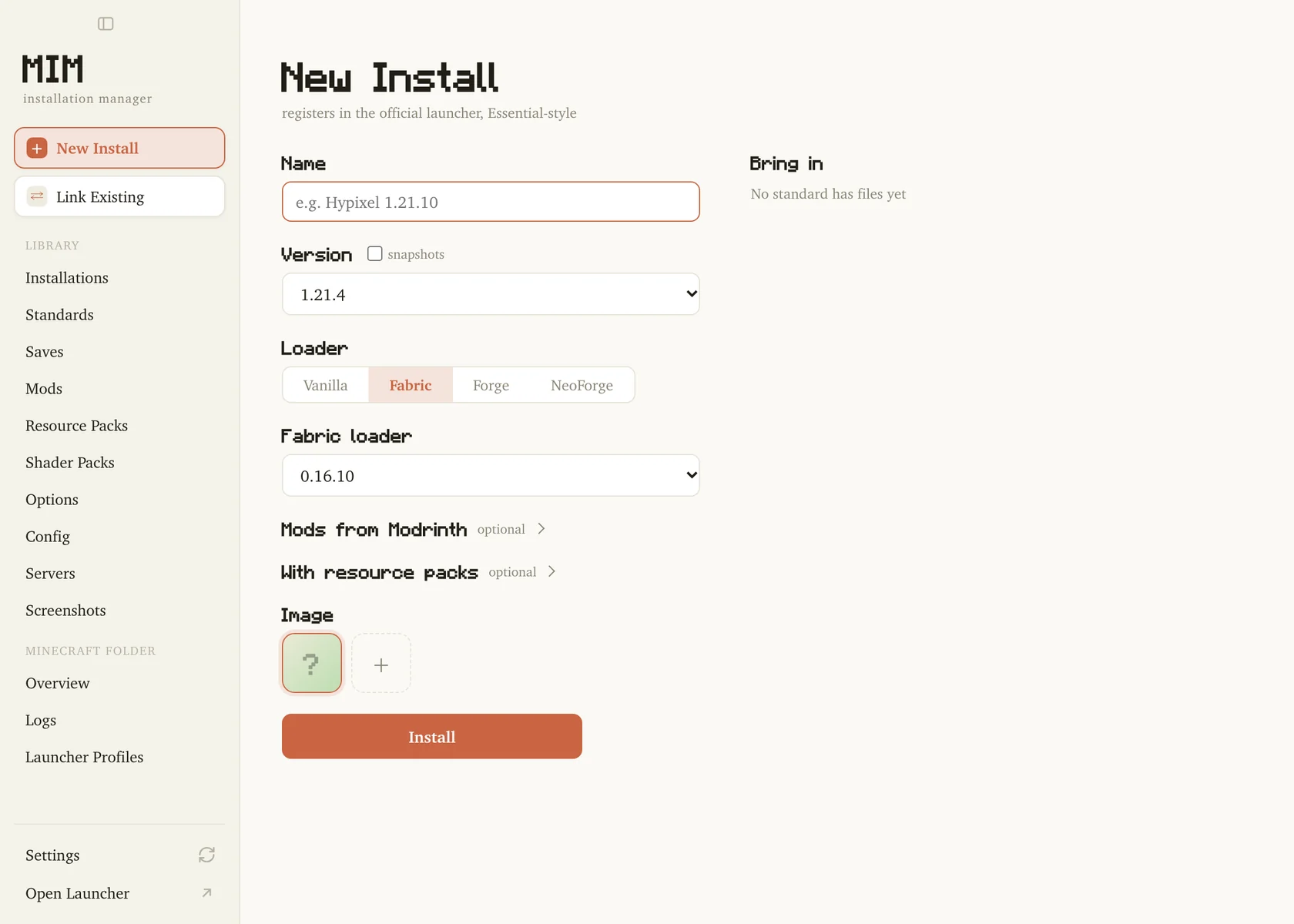
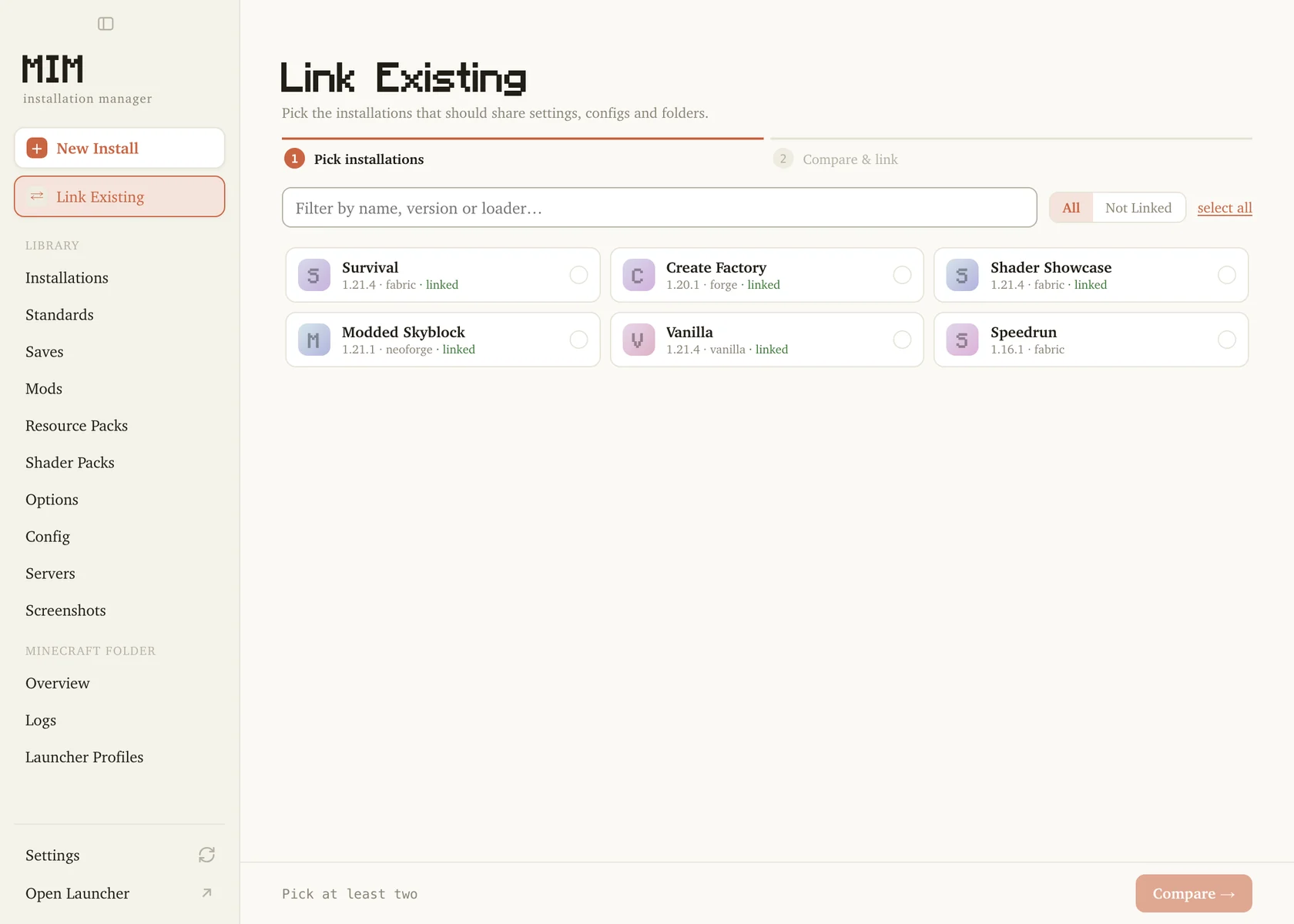
Everything that usually means digging through hidden folders has its own page. Select a slot to inspect it.
Browse your worlds across every install and see what's inside each one.
Free on desktop. Version 0.2.1. It updates itself from inside the app.
Open the disk image and drag MIM to Applications.
If SmartScreen appears, choose More info, then Run anyway. Linking single files needs Developer Mode. Folders work without it.
For an AppImage, run chmod +x MIM_*.AppImage first. On Debian or Ubuntu, run sudo apt install ./MIM_*.deb.
Looking for an older version? See all releases on GitHub.